
Visualizing a home renovation or interior design idea has traditionally required advanced design skills, professional...
TurboCAD 2026 is here. Upgrade from any earlier version and save.
See upgrade prices →
Questions? [email protected]
Latest posts
-
 Turn Your Ideas into Stunning Home Designs with Copilot Image StudioRead more
 -
 Create Realistic Home Renderings with Reference Images in Home Design CopilotRead more
Reference images help transform ideas and inspirations into more accurate and personalized designs. With Home Design...
-
 Home Design Help in Copilot: Find Answers and Solutions FasterRead more
Home Design Help in Copilot is a powerful assistance feature designed to help users get quick guidance and support...
-
 Understanding Design Preservation in Home Design Copilot Image StudioRead more
Home Design Copilot Image Studio gives you precise control over how closely AI-generated images follow your original...
-
 From Ideas to Solutions: Using General Questions in Home Design CopilotRead more
Designing a home often begins with questions. Whether you’re planning a new house, renovating a room, choosing...
-
 Exploring Input Options in Home Design Copilot Image StudioRead more
Home Design Copilot’s Image Studio provides a powerful and flexible set of input options that allow you to generate...
-
 Enhancing User Experience with Light and Dark Theme Options in Home DesignRead more
The Light and Dark Theme feature in Home Design application allows you to customize the appearance of the interface...
-
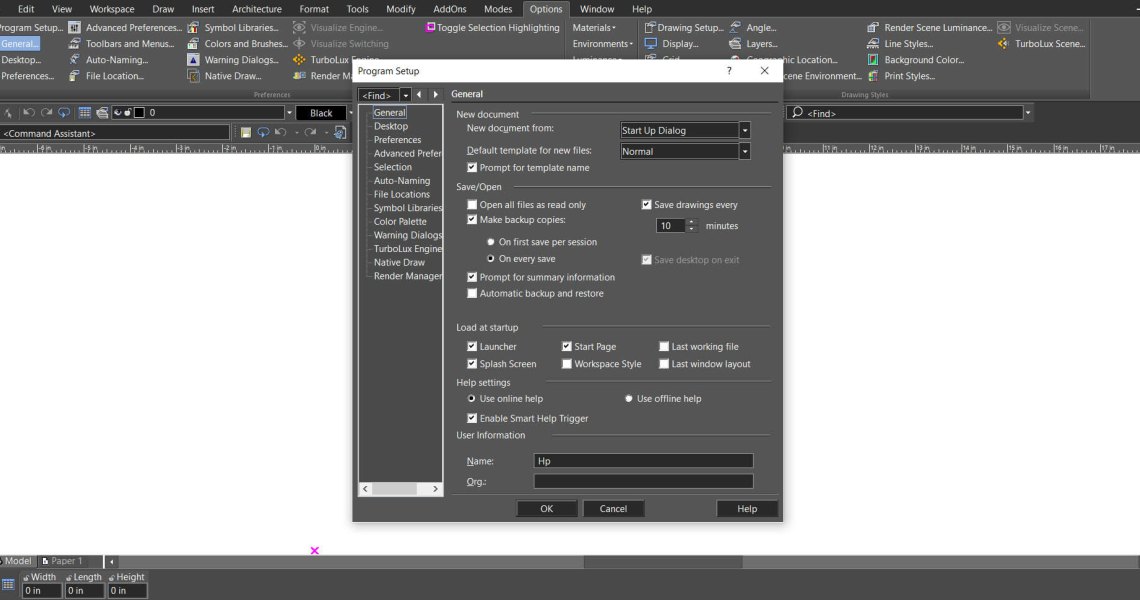 Copilot Palette: Smart Help TriggerRead more
Looking something up usually means breaking off what you were doing. Smart Help Trigger removes that step. With the...
-
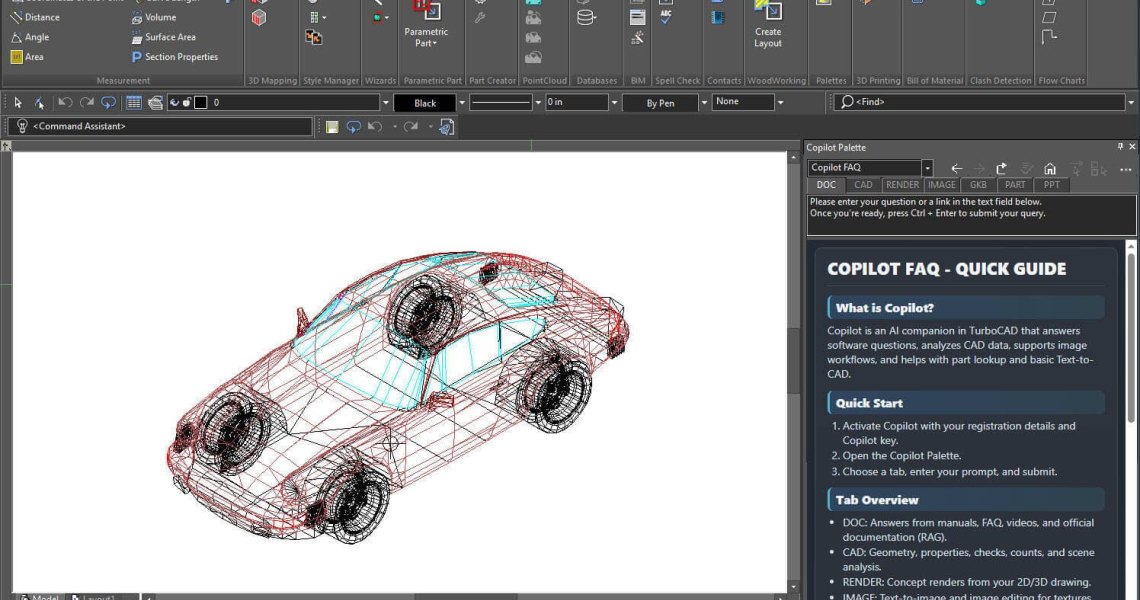 Conceptual Visualization from Your CAD Model with Copilot RenderRead more
There is usually a gap between a drawing that is technically finished and one a client can react to. Copilot Render...
-
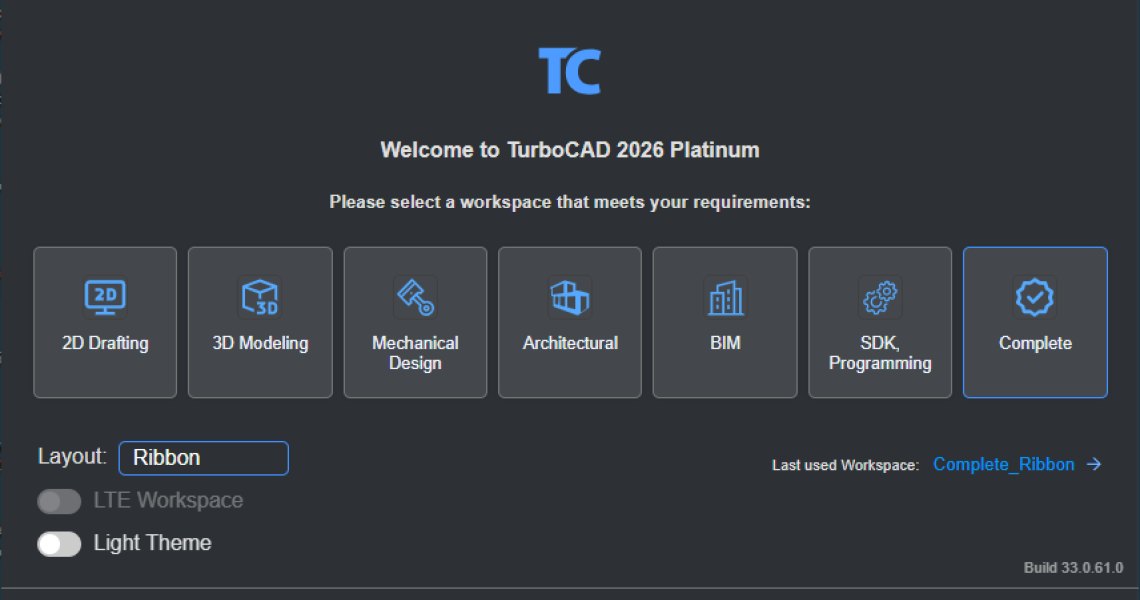 How to Customize and Manage TurboCAD WorkspacesRead more
Most drawing sessions only ever touch a fraction of what TurboCAD can do. A mechanical part and a floor plan need...
Blog categories
Search in blog
How to Customize and Manage TurboCAD Workspaces
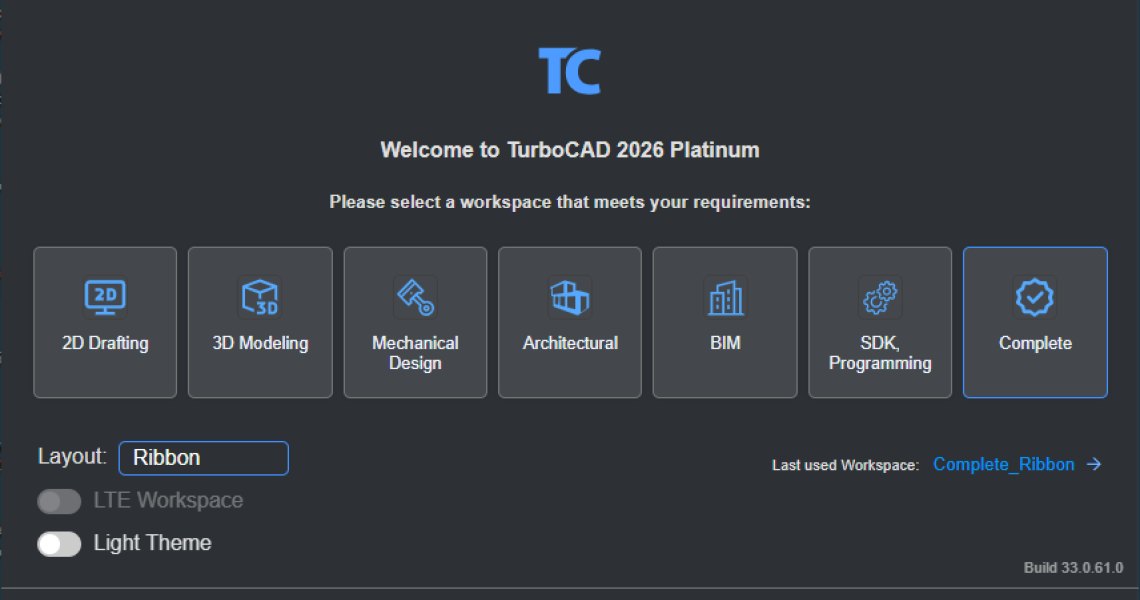
Most drawing sessions only ever touch a fraction of what TurboCAD can do. A mechanical part and a floor plan need almost nothing in common — yet by default the interface offers both. Workspaces fix that: each one exposes the commands, toolbars, menus and palettes that suit a particular kind of work, and hides the rest. Picking the right one is the quickest way to make TurboCAD feel like it was set up for the job in front of you.
The seven workspaces
- 2D Drafting – creating and editing 2D drawings and technical documentation.
- 3D Modeling – creating and modifying 3D models.
- Mechanical Design – mechanical design and engineering workflows.
- Architectural – architectural drafting and design.
- BIM – Building Information Modeling commands and functionality.
- SDK/Programming – development and programming workflows.
- Complete – the full, unrestricted configuration. Every palette, toolbar, menu and command, with no workflow filtering.
Availability depends on your TurboCAD edition — some include the full set, others a subset.
Launcher workspaces load defaults, not your customizations
Workspaces chosen from the TurboCAD Launcher are pre-configured layouts. Selecting one always opens TurboCAD in that default state — your own customized workspaces are not loaded automatically.
To return to the environment you were last working in, choose Last used Workspace in the Launcher. To open or save your own configurations, use the customization options inside TurboCAD itself.
Workspace and layout are two separate choices
In the Launcher's Workspace section you pick both the workspace and the Layout — Ribbon or classic Toolbars.
The workspace decides which tools are available. The layout decides how they are organized and accessed. They combine freely:
- Mechanical Design + Ribbon – the mechanical toolset in the Ribbon interface.
- Mechanical Design + Toolbars – the same toolset in the classic interface.
Why it is worth setting
- Faster access to the tools you actually use
- A more organized interface
- Less menu and toolbar clutter
- Easier command discovery
- A workflow shaped around your design requirements
An architectural designer works better in the Architectural workspace; a mechanical designer in Mechanical Design. The tools do not change — what you have to look past to reach them does.
Posted in:
TurboCAD
Related posts
-
Conceptual Visualization from Your CAD Model with Copilot Render
There is usually a gap between a drawing that is technically finished and one a client can react to. Copilot Render...Read more
-
Copilot Palette: Smart Help Trigger
Looking something up usually means breaking off what you were doing. Smart Help Trigger removes that step. With the...Read more
-
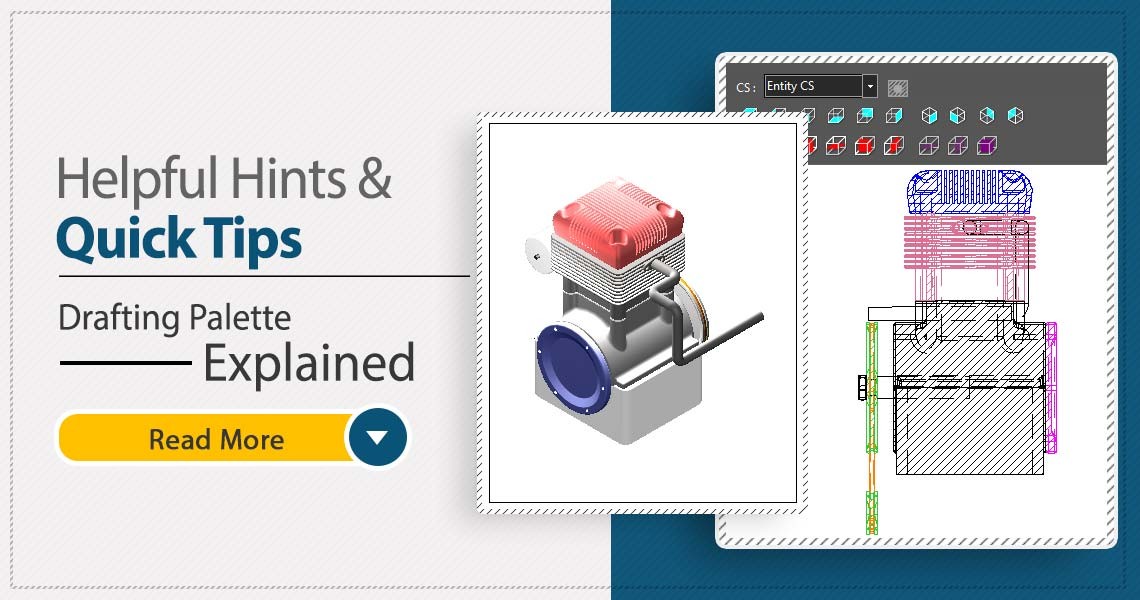 TurboCAD Drafting Palette: A Powerful Tool for 2D Documentation
One of the most powerful, yet least known tools in professional versions of TurboCAD is the Drafting Palette. The...Read more
TurboCAD Drafting Palette: A Powerful Tool for 2D Documentation
One of the most powerful, yet least known tools in professional versions of TurboCAD is the Drafting Palette. The...Read more -
 TurboCAD for AutoCAD Users
Once you’ve made the decision to use TurboCAD, this guide will help you get started by outlining the few differences...Read more
TurboCAD for AutoCAD Users
Once you’ve made the decision to use TurboCAD, this guide will help you get started by outlining the few differences...Read more -
 Design Director
The Design Director is a powerful and convenient palette in TurboCAD that helps you streamline your work and enhance...Read more
Design Director
The Design Director is a powerful and convenient palette in TurboCAD that helps you streamline your work and enhance...Read more
Leave a comment